Finding things and answering questions
Finding things
The search box and the Tasks table: sorting, grouping, the five menus, date windows, bulk edits, CSV export, and why every view is a link.
Two tools. The search box when you know roughly what you are looking for. The Tasks table when you have a question about a group of things.
The search box
It is in the middle of the top bar, on every page. Press / anywhere to jump into it.
Type two characters or more and the matches appear underneath, in groups, because "acme" matching a project, four tasks and a file is three different answers:
| Group | What it matches |
|---|---|
| Tasks | The title |
| Projects | The name or the key |
| Files | What the file is called, the name it arrived with, or its extension — logo, invoice.pdf, pdf |
| Notes | Anything written in a note, on a task or a project |
| People | A name or an email address; the result opens their open work |
Walk them with the arrow keys, open one with Enter, dismiss with Escape. A file or a note opens the task or project it lives on, since neither is a page of its own.
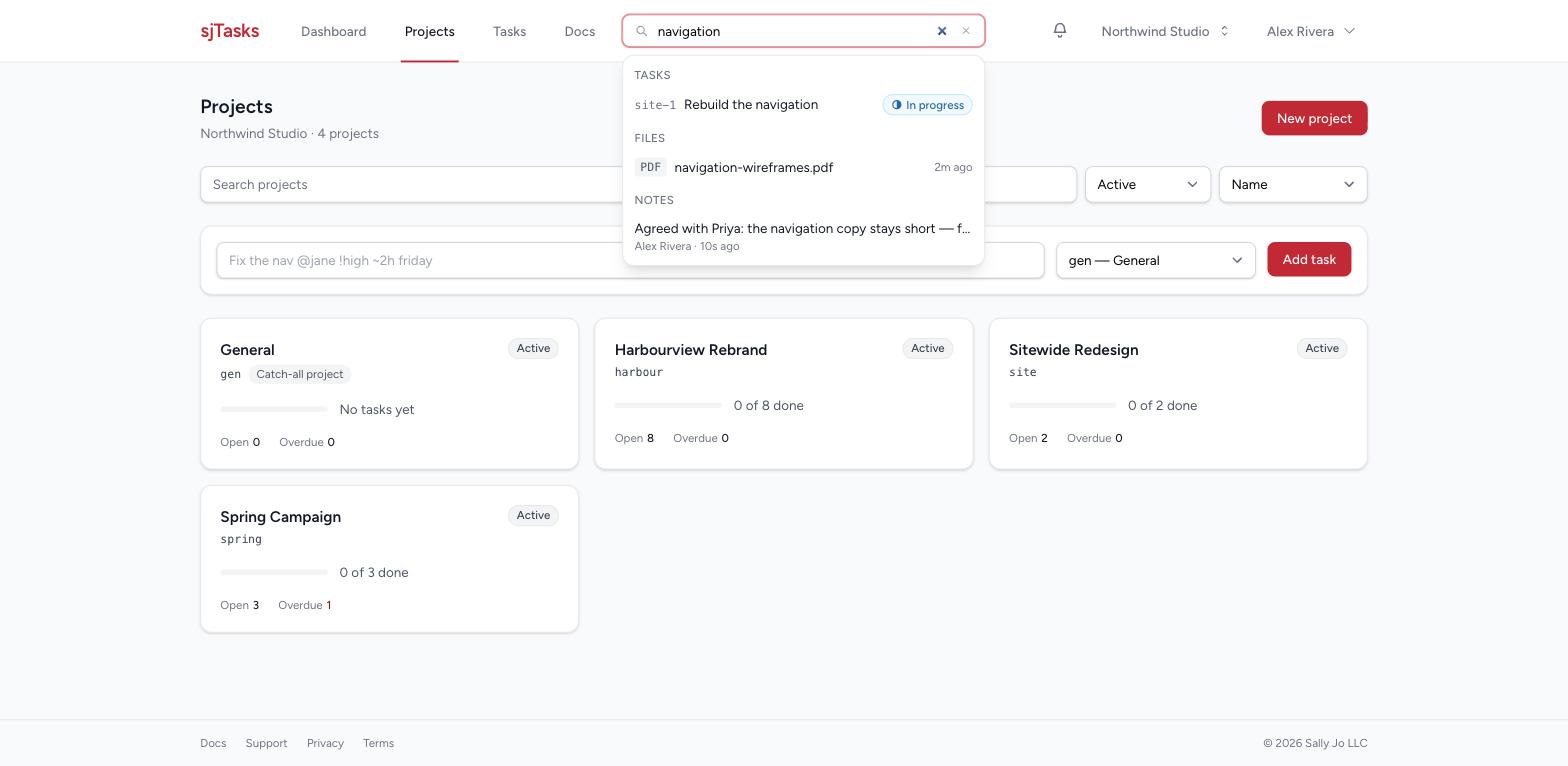
Two things it does that are worth remembering:
- A reference is an address. Type
acme-142and press Enter and you go straight to that task — including references from before a project was re-keyed, and from before a task was moved. Old links do not rot. - Enter with nothing highlighted never dead-ends. It takes you to the Tasks table, searched for what you typed, across every status.
On the Tasks page the same box filters the table. Its placeholder changes to Filter tasks…, and as you type the list narrows in place — matching titles and descriptions — instead of a panel opening over it. What you typed becomes a chip under the menus and part of the address, so a searched list is still a link. A reference typed here still jumps to its task.
Search only ever finds what you could already see. It is not a way around who has access to what: a file or a note from a project you were not given never appears, and a guest gets no People group at all — the roster of a team is not theirs to read.
The Tasks table
Tasks in the top bar: everything in your team you are allowed to see, in one table.
Columns — the Columns menu beside Views is a list of ticks. Tick what you want to see, untick what you do not, and the table remembers it for you, on every team, until you change it again; Back to the standard set puts it as it was. Task is always there — it is the row. Click a heading to sort, click it again to reverse (a few columns are read-only and do not sort):
| Column | On by default | Notes |
|---|---|---|
| Status | yes | Open, overdue, in progress, blocked, on hold, done, every status |
| Project | yes | The project key. Folds away on a narrow screen — the reference beside each title already names it |
| Task | always | The title. The reference sits beside it |
| List | no | Which list in the project it sits in |
| Assignee | yes | Who owns it. Click the name to change it. Folds away on a phone — the People menu still answers |
| Priority | yes | Sorts highest first the first time you click it. Click the chip to change it |
| Due | yes | The default sort. Undated work always sorts last, never as "oldest". Click the date to change it |
| Estimate | no | What somebody thought it would take |
| Logged | no | Hours put against it so far |
| Created | yes | When it was raised. Folds away on a narrow screen |
| Finished | no | When it was marked done. Shows on its own whenever the list is about finished work |
| Last activity | no | The last time anything happened on it |
Assignee, priority and due date are editable straight in the row, without opening the task: the row reads as text, and clicking the name, the chip or the date turns it into a menu or a date box. Clearing the date box takes the due date off. Pick, and the row says Saved for a moment. Escape puts it back. A change you are not allowed to make says so on that row and leaves the value alone.
The table comes in pages of fifty — the foot of the table says where you are, 51–100 of 312, with Previous and Next and a choice of 25, 50, 100 or 200 rows a page. The page is part of the address, so a link lands on the page it was copied from, and any filter or sort you change starts you back at the first page.
Grouping the table
Group by, to the right of the menus, puts headings in the table: by project, by assignee, by status, by priority or by due date. The rows are sorted by the group first and by the heading you clicked within it, so everything under one heading sits together. Each heading counts its rows and — when your team tracks time and you are not a guest — adds up the hours estimated and the hours logged underneath it. The numbers are of the page in front of you; when the list runs to several pages the heading says on this page, and the pager at the foot shows how far the list goes.
The due-date groups are the windows the Dates menu offers — past due, today, tomorrow, this week, next week, after this week, no date — drawn where they fall for you, in your own timezone.
Grouping is part of the address (group=assignee), so a grouped list is a link, a saved view keeps
its grouping, and Export CSV writes the heading into a first Group column so a spreadsheet
can subtotal on it too. No grouping puts the table back to one list.
Taking the table with you
Export CSV, beside the Columns menu, downloads the table as a spreadsheet file — every row
the filters match, in the order you sorted them, not only the page on screen. The columns are the
ones you have ticked, with the reference and the title first, so a table set up for a client
review exports as the table they saw. Dates are written the plain way (2026-09-10), hours as
decimals, and where a task has several tags they sit in one cell, separated by commas. The file
is named for the day you took it, and it opens in any spreadsheet program.
It holds what you can see and nothing more: a member exports their projects, a guest what they were given. For everything in the team at once — every project, every note, every file — use Exporting your team.
The menus
One row, five questions, left to right:
- Status — Open, Overdue, In progress, Blocked, On hold, Done, or Every status. "Open" means open, in progress, blocked, or on hold — one definition, used everywhere in sjTasks; the three in between narrow to one of them.
- Project — one project, or all of them.
- People — Anyone, Me, Unassigned, a named person, or — last on the list — Raised by me, for finding what you asked for rather than what you own. Unassigned open work is one of the most useful views in the product.
- Dates — one window, and the menu follows the status (below).
- Priority — one level, or High and urgent together, which is the question people actually ask.
If your team uses tags, a Tag menu appears after Priority. Pick one and the list keeps
the tasks that carry it. The address says tag=design; put two names in it with a comma —
tag=design,launch — and the list shows tasks carrying either one, which is the shape
a saved view for "everything for the launch" wants. Tags are matched by name, not by case. Tags were
called labels until September 2026; an older link that says label=design still opens the same
list. The same Tag menu is on the Projects page, the board, the calendar and the two reports —
see Tags.
If your team uses custom fields, each task field gets a filter of its own
after the Tag menu: a menu for a yes/no or a list, a box for the rest. A box takes words the way
the address does — >=1000, 100..500, 2026-10-01..2026-10-31, a word the text contains, or
none — and the address says field[budget]=>=1000, so the filter is a link like every other.
Each field is also a column you can tick in Columns, and it goes into Export CSV with the
rest.
If your team uses clients, admins and team-wide members get a Client menu after Project. Pick
Acme and the list keeps the tasks of every Acme project, including a project put under Acme
later. The address says client=acme, and a saved view keeps it. The same menu is on the
Projects page and the two reports — see Clients.
On a phone, Status, Project and Client stay out and the rest sit behind one Filter button.
The table remembers where you left it. Set the menus the way you like, go elsewhere, and Tasks in the top bar brings you back to the same filters, sort and grouping — yours alone, on whichever device you sign in from. The address bar fills in with them, and the chips say what is on, so nothing is narrowing the list in secret. Two things are never remembered: a search, and the page you were on. A link that names its own filters — a tile on the dashboard, a saved view, an address from an email — always wins over the memory, and Clear every filter forgets as well as clears, so the next plain visit is plain.
To the right of the menus sit Views (Saved views and the standard questions) and Add task.
Dates follow the status
Open work has a due date and no finish date. Finished work has a finish date, and its due date no longer matters. So the Dates menu offers different windows depending on what the Status menu says:
| Status | The Dates menu offers |
|---|---|
| Open | Due windows, then Raised windows |
| Done | Finished windows, then Raised windows |
| Every status | Due, Finished, then Raised — it spans open and finished work |
| Overdue | Raised windows only — the status is already a due window |
Changing the status clears any date filter the new menu no longer offers. Pick Done and a due window goes; pick Open and a finished window goes. A Raised window survives every status, because it applies to all of them.
Due windows
| Window | Means |
|---|---|
| Past due | Due before today, still open |
| Due today / Due tomorrow | |
| This week / Next week | Calendar weeks, starting on the day your team starts its week. Next week is Monday to Sunday, not the next seven days |
| Next 7 days / Next 30 days | Rolling windows starting today |
| This month | |
| No due date | Work nobody has committed to |
All of them resolve today in your timezone.
Raised, and Finished
Two backward-looking windows, sharing one vocabulary: Today, Yesterday, This week, Last week, Last 7 days, Last 30 days, This month, Last month, and Between two dates for when no word fits. Pick Between two dates and two date boxes appear under the menus, and only then.
Raised asks when the task was created. Finished asks when it was completed — which also means "finished at all", so it quietly excludes work that never was.
"Last week" means the same seven days whichever of the two you point it at, and both resolve in your timezone, using your team's week start.
The question people ask most
"What did Jane finish in the last 7 days?" is Views → Finished in the last 7 days, then Jane from the People menu. It only ever sets filters, so what you end up with is an ordinary list at an ordinary address — one you could have built yourself from the menus (Done, then Finished: Last 7 days), and one you can now send to Jane.
Changing a lot of tasks at once
Every row has a tick box, and the heading has one that takes everything currently listed.
Tick some rows and a bar appears: choose an action, choose what to set it to, press Apply.
| Action | Needs |
|---|---|
| Set status | Which of the six |
| Set priority | Which level |
| Assign to | A person, or Unassigned |
| Set due date | A date |
| Clear due date | Nothing |
| Delete | Nothing. Admins only: the tasks go to the 30-day Trash, linked at the top of the page |
A bulk edit is a hundred ordinary edits, not a shortcut around the rules: each task goes through the same checks and writes its own history entry. Anything refused is named. If a parent cannot be finished because a subtask still blocks it, or one of the tasks is in a project you cannot edit, you get "acme-142 — Blocked by acme-145" rather than a silent skip, along with a count of how many did change.
Adding a task from here
Add task, at the right of the menus, opens the quick-add box with a project picker. It defaults to the project you have filtered to, and otherwise to General, so the common case is type and press. The shorthand is the same everywhere: see Adding tasks fast.
Two habits that make the table earn its keep
Read the chips. Whenever something is filtered, a quiet line under the menus says, in words, exactly what the list is showing — In Acme · Done · Finished last week — and how many rows that is. Each chip has an × that removes its own filter, and the menu above follows. The page opens on open work, and that is the page rather than a filter, so it earns no chip; when nothing else is filtered there is no line at all. A list that looks suspiciously short always tells you why it is short.
Send the link, not the instructions. Every filter, the sort column, and the direction are all in the address bar. Set up "Acme, high and urgent, due next week" once and paste the URL into an email — the person who opens it sees the same list, subject to what they are allowed to see. It is also a bookmark, and it is what Views → Save current view… puts a name on (Saved views and the standard questions).
The count at the foot of the table says 1–50 of 312 shown when there is more than one page, so narrow the filters rather than paging.